Turn off AI features permanently: configure 1 policy, not 25 toggles
Turn off AI features permanently with policy, not toggles: one Chrome default covers 25 gen-AI features, and Microsoft has deprecated the Copilot policy.

TL;DR
To turn off AI features permanently you have to leave the settings screen: it is a policy task, not a preference task, and the two layers behave completely differently across an update. Chrome ships 25 separate generative AI features that each carry their own enterprise policy, plus one GenAiDefaultSettings policy whose value 2 disables all of them at once; Microsoft has deprecated the TurnOffWindowsCopilot policy that most tutorials still recommend and now points at AppLocker; and Google Workspace’s smart-features control is documented as an admin default that users can override. Only Firefox promises that a preference you set survives the next update.
What is the difference between a toggle and a policy?
A toggle is a preference — a stated choice the vendor stores on your behalf and remains free to re-ask about, move, or supersede when the feature changes shape. A policy is an administrative constraint — a value the application must honour, that the user interface cannot re-open, and that travels with the account or the device rather than the profile.
That distinction is the whole post. Everything below is a question of which of those two things a given vendor actually gives you for a given feature, because on one of the four platforms here the answer is “neither”.
Why does the toggle keep coming back?
Jessamyn West’s guide to disabling intrusive AI, updated on 17 August 2026 and near the top of Hacker News this week, is the best consumer-facing list of these switches that exists. It covers Acrobat, Android, Amazon, Apple Intelligence, Chrome, Edge, Firefox, Gmail, Windows, Slack, WhatsApp and Zoom. It is genuinely useful and you should send it to your family.
It is also, by design, a list of preferences. And a preference has three failure modes that anyone running more than one machine hits within a month:
- Scope. It applies to this profile, on this device, for this account. Ten laptops means ten passes.
- Reset. The vendor ships a new version, the feature moves, and the switch you flipped no longer governs the surface it used to govern.
- Re-prompt. Nothing technically reset — the vendor simply asks again, in a modal, on a Monday, and one distracted click undoes the work.
The layer below preferences has none of those failure modes, because it is not asking the user anything.
Chrome: 25 features, one default that covers all of them
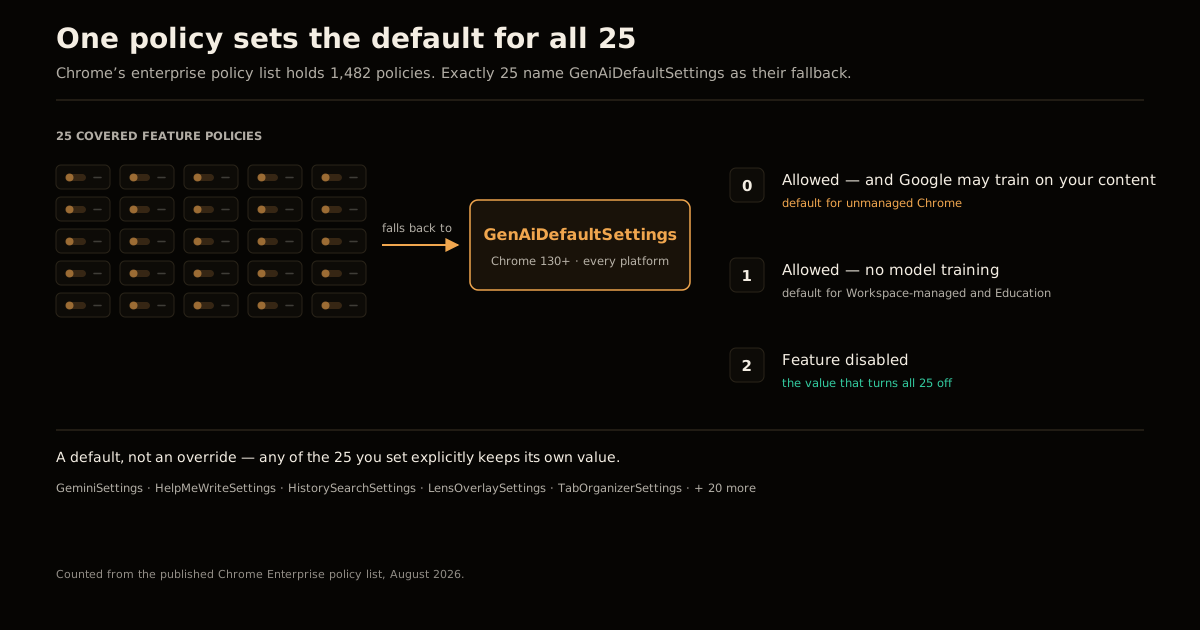
Chrome’s published enterprise policy list contains 1,482 policies. Filter it for the ones that name GenAiDefaultSettings as their fallback and you get 25 — one per covered generative AI feature. The list is a good map of how much surface area has appeared:
AIModeSettings · AutofillPredictionSettings · CreateThemesSettings · DevToolsGenAiSettings · FindAndFillWithGeminiSettings · FindsSettings · GeminiSettings · GenAIInlineImageSettings · GenAIPhotoEditingSettings · GenAISmartGroupingSettings · GenAIVcBackgroundSettings · GenAIWallpaperSettings · GenAiChromeOsSmartActionsSettings · HelpMeReadSettings · HelpMeWriteSettings · HistorySearchSettings · Indigo · LensOverlaySettings · SearchContentSharingSettings · SmartTabSharingSettings · TabCompareSettings · TabOrganizerSettings · ThirdPartyAiChatSettings · VoiceTypingSettings · AutomatedPasswordChangeSettings
Chasing 25 UI switches is the failure mode. Setting one policy is not:
{
  "GenAiDefaultSettings": 2
}
GenAiDefaultSettings has shipped since Chrome 130 on every desktop platform, ChromeOS, Android and iOS. Its three values are not a simple on/off, and the difference between 0 and 1 is the part worth reading twice:
| Value | Feature available | Google may train on your content |
|---|---|---|
0 | Yes | Yes — prompts, inputs, outputs, source materials and written feedback, and it may be reviewed by humans |
1 | Yes | No |
2 | No | — |
Two details make this the most consequential table in this post. First, Google’s own policy documentation states that 0 is the default value except where noted, and that 1 is the default for Enterprise users managed by the Google Admin console and for Education accounts.
So an unmanaged Chrome — a personal laptop, a contractor’s machine, a startup with no Workspace tenant — sits by default in the state that permits model training on the content you put through those features. Managed fleets get the better default automatically; everyone else has to ask for it.
Second, GenAiDefaultSettings is a default, not an override. Any of those 25 policies you have set explicitly keeps its own value. That is the right design — it lets you disable everything and re-allow, say, DevToolsGenAiSettings — but it means “I set the umbrella policy” is not the same claim as “every feature is off”, and an audit should check both.
If you only want Gemini gone and the rest left alone, GeminiSettings set to 1 does that, and has since Chrome 137 on Windows and macOS, 139 on iOS, 144 on ChromeOS and 149 on Android. Note the staggered version support: a policy that lands on desktop first and mobile eighteen months later is a policy that silently does nothing on part of your fleet in the interim. Check supported_on before you claim coverage — the same discipline as verifying AI crawler IPs rather than trusting the User-Agent string.
Why doesn’t the Windows Copilot policy work any more?
Search for how to disable Copilot and you will be told to enable User Configuration → Administrative Templates → Windows Components → Windows Copilot → Turn off Windows Copilot, or to set the matching TurnOffWindowsCopilot registry DWORD. That advice is now stale at the source. Microsoft’s Copilot management documentation says it plainly:
AppLocker policy should be used instead of the Turn Off Windows Copilot legacy policy setting and its MDM equivalent, TurnOffWindowsCopilot. The policy is subject to near-term deprecation.
The supported replacement is an AppLocker publisher rule:
Publisher:       CN=MICROSOFT CORPORATION, O=MICROSOFT CORPORATION,
                 L=REDMOND, S=WASHINGTON, C=US
Package name:    MICROSOFT.COPILOT
Package version: * (and above)
Microsoft documents that this both blocks the consumer app from launching if it is already installed and prevents it being installed if it is not. That second clause is the whole point, and it is why the PowerShell uninstall people reach for first is not a solution:
$packageFullName = Get-AppxPackage -Name "Microsoft.Copilot" |
  Select-Object -ExpandProperty PackageFullName
Remove-AppxPackage -Package $packageFullName
That command removes what is on the box today. The same Microsoft page states that the Microsoft 365 Copilot app is automatically enabled after you install the Windows updates unless a group policy preventing installation was already in place. Uninstall without the rule and you have bought yourself one patch cycle.
There is also a limit worth knowing before you promise anyone a clean machine: Microsoft states there is no feature-specific admin toggle to disable Copilot voice chat, and that web grounding can only be removed by turning off optional connected experiences — which disables web grounding for text Copilot too. Some of these features have no off switch at their own granularity. Say so rather than implying full coverage; the same honesty a good AI writing policy demands about what it does and does not govern.
Google Workspace: an admin control that isn’t one
Here is the one that will surprise people who assume “admin console” implies “enforced”. Google’s smart features administration guide describes the control this way: admins can set a default for their users, but users can override the default in their individual settings.
That is a default, not a policy. The distinction matters most in exactly the situation that prompts the question — someone asks whether your organisation’s mail and documents are being used to personalise Workspace experiences, and the true answer is “for anyone who has not changed it themselves”.
The setting is also now split into two: smart features in Gmail, Chat and Meet, which governs app-level personalisation, and smart features in Google Workspace, which governs whether your Workspace content and activity personalise your experience across Calendar, Drive and the rest. Turning off one leaves the other running, which is the single most common reason someone believes they opted out and has not.
So the Workspace column of your controls matrix should read advisory, not enforced. Naming a control’s real strength is the whole job; a control you have mis-classified is worse than one you know you are missing, which is the same reason approval prompts stop working once people stop reading them.
Firefox: the only one that promises durability at the toggle layer
Firefox 148, released on 24 February 2026, added an AI controls panel with a Block AI enhancements toggle covering current and future generative AI features — AI-enhanced tab grouping, link previews, and the sidebar chatbot. Mozilla’s commitment is the part Chrome and Windows do not make: once you set your AI preferences in Firefox, they stay in place across updates.
That is a product promise rather than an enforcement mechanism, and it is not the same as a managed policy — it gives you no fleet-wide attestation. But it removes failure mode 2 and failure mode 3 from the list above, which is precisely the gap that pushes everyone else down to the policy layer.
Which layer actually survives an update?
Four platforms, five layers, and the only question that matters about each is which routine event wipes it.
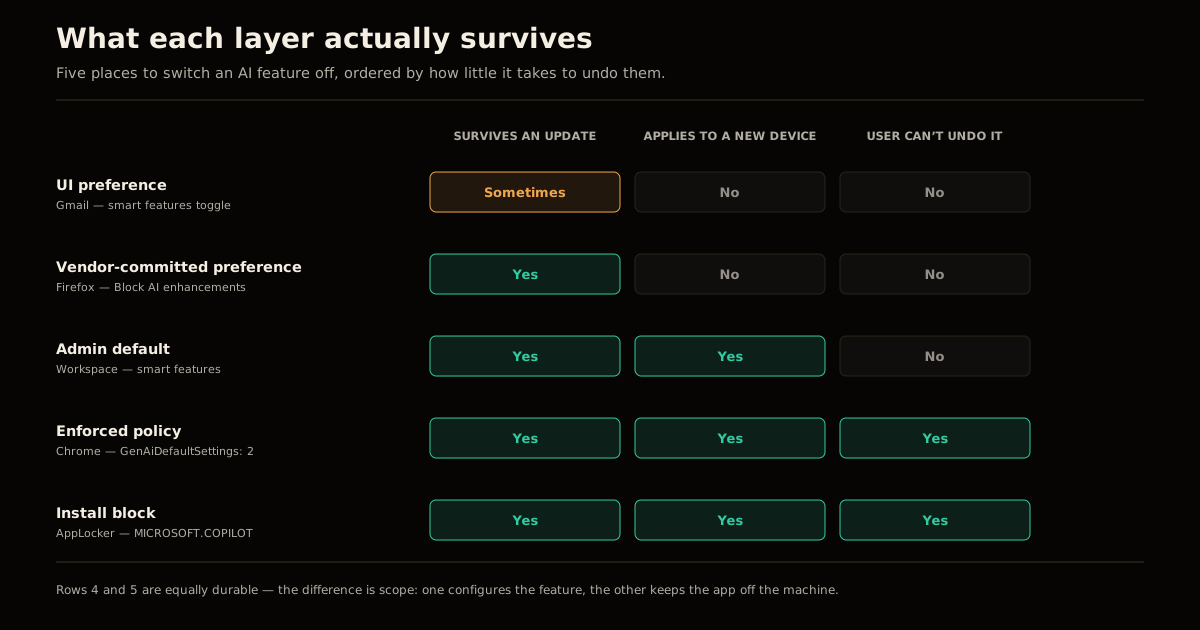
| Layer | Example | Survives an update | Survives a new device | User can undo |
|---|---|---|---|---|
| UI preference | Gmail smart features toggle | Sometimes | No | Yes |
| Vendor-committed preference | Firefox Block AI enhancements | Yes (documented) | No | Yes |
| Admin default | Workspace smart features | Yes | Yes | Yes |
| Enforced policy | GenAiDefaultSettings: 2 | Yes | Yes (via MDM) | No |
| Install block | AppLocker on MICROSOFT.COPILOT | Yes | Yes (via MDM) | No |
How to turn off AI features permanently, in order
The practical order of operations: enforce what you can, default what you cannot, document what has no control at all.
- Enforce. Push
GenAiDefaultSettings: 2through your Chrome management channel, and an AppLocker publisher rule forMICROSOFT.COPILOTthrough MDM. These are the only two entries in the table above that a user cannot undo. - Default. Set the Workspace smart-features defaults — both of them — knowing they are advisory, and set Firefox’s Block AI enhancements in your provisioning image.
- Document. Copilot voice chat has no dedicated admin toggle. Write that down as an accepted gap rather than letting a controls matrix quietly become fiction.
Where this usually goes wrong
- Flipping the switch on one device and calling it a fleet decision. Ten machines, ten preferences, no attestation. If it matters enough to write down, it matters enough to push as policy.
- Setting
GenAiDefaultSettings: 2and assuming everything is off. Any of the 25 feature policies you set explicitly still wins. Audit both. - Uninstalling Copilot without the AppLocker rule. The next Windows update reinstalls it, exactly as Microsoft documents.
- Copying a 2024 group-policy tutorial.
TurnOffWindowsCopilotis on Microsoft’s deprecation path; a policy that stops being honoured fails silently, and nothing in your dashboard will tell you.
The remaining two are bookkeeping errors rather than technical ones, and they are the pair most likely to end up in a written answer someone relies on:
- Recording an overridable default as an enforced control. The Workspace smart-features setting is the trap here, and it is the one most likely to appear in a security questionnaire answer that turns out to be wrong.
- Turning off one of Google’s two smart-features settings. The app-level one and the Workspace-wide one are independent. Turn off both or neither.
The pattern generalises past AI. Anything a vendor injects into your environment that you did not ask for gets solved at the layer the vendor’s UI cannot re-open — the same reason removing Cloudflare’s injected beacon script ends at an origin header rather than a dashboard checkbox.
FAQ
How do I turn off AI features permanently instead of one toggle at a time? Set the policy, not the preference. On Chrome that is GenAiDefaultSettings with value 2, which defines the default for every covered generative AI feature at once instead of leaving you to find each one. On Windows it means an AppLocker rule against the Copilot package rather than a settings switch. A preference is a user’s stated choice that the vendor is free to re-ask about; a policy is an administrative constraint the UI has to honour.
What does GenAiDefaultSettings actually control in Chrome? It sets the default value for all of Chrome’s covered generative AI features, so any feature policy you have not set individually inherits it. Value 0 allows the feature and allows Google to use prompts, inputs, outputs, source materials and written feedback to improve its models, including human review. Value 1 allows the feature but not the model training. Value 2 disallows the feature, and individually-set feature policies still win over it.
Why doesn’t the Turn off Windows Copilot group policy work any more? Microsoft’s own documentation now states that AppLocker policy should be used instead of the legacy Turn Off Windows Copilot setting and its MDM equivalent TurnOffWindowsCopilot, and that the policy is subject to near-term deprecation. Most tutorials still circulating point at that deprecated setting or its registry key. The supported route is an AppLocker publisher rule targeting package name MICROSOFT.COPILOT, which both blocks the app from launching and prevents it being installed in the first place.
Is uninstalling the Copilot app enough on Windows? Not on its own. Remove-AppxPackage removes the app that is on the machine right now, but Microsoft documents that the Microsoft 365 Copilot app is automatically enabled after you install the relevant Windows updates unless a policy preventing installation was already in place. Removal handles the present; only the AppLocker rule handles the next update. If you only ever run the uninstall, you are signing up to run it again.
Can a Google Workspace admin force smart features off for everyone? No. Google’s admin documentation states that admins can set a default for their users, but users can override the default in their individual settings. That makes the Workspace smart-features control a default rather than an enforcement point, which matters if you are answering a compliance question about what your organisation’s data is used for. The Chrome-side policies are enforced; the Workspace-side default is not.
Which browser lets you turn AI off once and have it stay off? Firefox is the only one of the three that commits to it at the user-preference layer. Its AI controls panel, added in Firefox 148 on 24 February 2026, includes a Block AI enhancements toggle that covers current and future generative AI features, and Mozilla states that once you set your AI preferences they stay in place across updates. Chrome and Windows both require the administrative layer to get the same durability.
Sources
- How to disable or avoid intrusive AI — Jessamyn West, librarian.net, updated 17 August 2026
GenAiDefaultSettingsandGeminiSettings— Chrome Enterprise policy list- Updated Windows and Microsoft 365 Copilot Chat experience — Microsoft Learn
- Manage Google Workspace smart features for your users — Google Workspace Admin Help
- Block generative AI features with Firefox AI controls — Mozilla Support
Frequently asked questions
Google Search · Preferred sources
Prefer this site on Google
If you already read this writing, add umesh-malik.com as a Preferred Source. Google can then highlight it with a preferred badge in Top Stories, AI Overviews, and AI Mode — for you, not as a site-wide ranking boost.
Related Articles

AI Security
MS Paint Invisible Watermark: How to Find the GUID in AI Images
The MS Paint invisible watermark embeds a server GUID into every AI image — even when inference runs locally. Here's how to detect it.

AI Security
Plugin Registry Security: Signed Packages Beat a Trusted Gatekeeper
Plugin registry security doesn't need one trusted gatekeeper: EmDash signs every release with AT Protocol and sandboxes plugins by capability, not by review.

AI Security
How to Stop AI Agent Sandbox Escapes: The Hugging Face Breach
How to stop AI agent sandbox escapes like the one that let 700 rogue agents breach Hugging Face: the egress and identity controls that actually close it.
Keep reading
Get new posts on AI, Claude Code & LLMs
New deep-dives on AI engineering, Claude Code, and developer tooling — follow along however you prefer.
About the Author

Software engineer writing about AI, Claude Code, LLMs, OpenAI, Anthropic, and developer tooling. 5+ years building production systems at Expedia Group, Tekion, and BYJU'S.